
Beginner’s Guide on How to Digitize a Logo
Getting your logo into the right digital format can feel confusing at first. You might have a hand-drawn sketch, a low-resolution image, or a design that just does not look right when printed or stitched. Learning how to digitize a logo is a skill that opens doors for better branding, professional apparel, and high-quality marketing materials. This guide breaks the entire process into simple, actionable steps that any beginner can follow.
What Does It Mean to Digitize a Logo?
Logo digitization is the process of converting your logo into a clean, usable digital file. This usually means turning a rough sketch, a photo, or a low-quality image into a vector logo that scales without losing quality. It can also mean converting that vector into a stitch file for embroidery machines.
There are two main paths you will follow depending on your goal. The first is creating a scalable logo in SVG format or EPS for design purposes. The second is preparing a stitchable file like a DST file or PES file for embroidery. Both paths start with the same foundation: a clean digital image.
Step 1: Prepare Your Original Logo
Start by gathering the best version of your logo. If you know how to convert a hand-drawn logo to digital, the process begins with a clean, high-contrast scan. Place your sketch on a flat surface and scan it at 300 DPI or higher. Good scanning images at high resolution gives you more detail to work with and makes the next steps much easier.
If your logo already exists as a raster image (JPEG, PNG, BMP), make sure it is as sharp and clear as possible. Blurry or pixelated images produce poor results during image tracing. Crop the image tightly and remove any background noise before you proceed.
Step 2: Convert Your Logo into a Vector Graphic
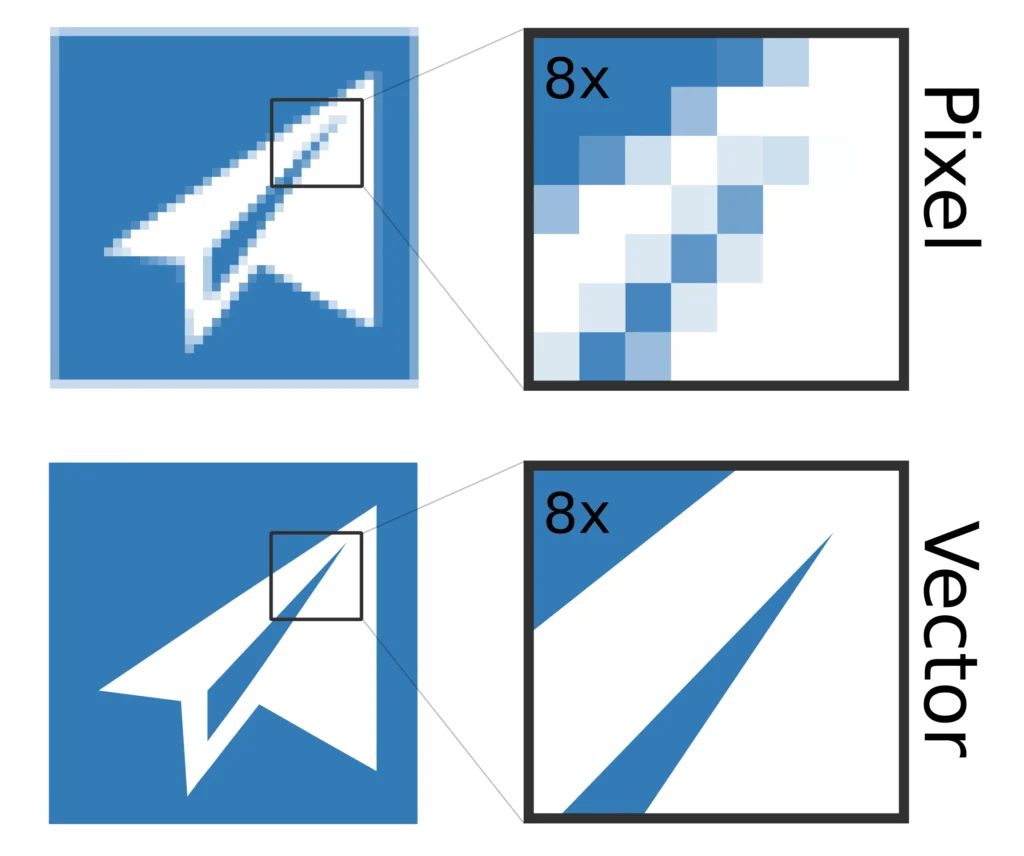
This is the heart of the digitization process. You need to take your raster image and convert it into vector graphics. Vectors use mathematical paths instead of pixels, so your logo stays crisp at any size.
You have several options here. Adobe Illustrator logo trace (Image Trace feature) is one of the most popular tools for this job. You simply place your image, select Image Trace from the toolbar, and adjust the settings until your logo looks clean. For a free alternative, Inkscape offers powerful vectorization tools with a “Trace Bitmap” option that works very well for simple logos.
Once tracing is complete, clean up the paths manually. Remove stray anchor points, smooth out curves, and simplify complex shapes. This stage is sometimes called logo refinement. Good graphic editing here means your logo will look professional across all file formats and use cases.
Save your final vector file as an SVG logo or EPS logo. These are industry-standard formats for branding and printing. The raster to vector conversion you just completed also makes resolution enhancement a non-issue: your logo will look sharp on a business card or a billboard.
How to Digitize a Logo for Embroidery for Beginners
If your goal is to put your logo on a shirt, cap, or bag, you need to go one step further. Understanding how to digitize a logo for embroidery for beginners means learning how to translate your vector design into a format an embroidery machine can read.
Embroidery digitizing is different from regular vector design. You are not just drawing shapes. You are mapping out every stitch the machine will make. Key decisions include choosing between satin stitch (great for outlines and text) and fill stitch (used to cover large areas). You also set underlay stitch to stabilize the fabric before the top stitches go down.
Other factors to control include stitch density, which determines how tightly packed the stitches are, and thread colors, which you assign to match your brand palette. A good stitch map makes your embroidery machine logo look clean and professional on any fabric.
Embroidery Software You Can Use
Several powerful tools are available for embroidery digitizing. Wilcom software is an industry leader used by professional shops worldwide. Hatch embroidery is a more beginner-friendly option built on the Wilcom engine. If you prefer a free solution, Ink/Stitch is an open-source extension for Inkscape that handles basic digitizing tasks well.
These programs let you import your vector logo and map the stitch paths directly. Once done, you export your design as a DST file or PES file, depending on your machine brand. These are the standard embroidery file formats accepted by most commercial machines.
When to Use a Professional Service
Sometimes it makes more sense to hand the work to an expert. If your logo is complex, has many colors, or needs to look perfect on a logo embroidery patch or hat logo digitizing project, professional help is worth it.
You can hire a reliable Logo Digitizing Services provider who will take your vector file and return a production-ready stitch file. These providers specialize in custom embroidery logo work and understand the nuances of different fabrics, machine types, and stitch requirements.
Working with a reputable embroidery digitizing company also saves you time if you need logo for apparel at scale. They handle logo file conversion efficiently and deliver files that are tested and ready to run on your machine.
Auto-Digitizing vs. Manual Digitizing
Many software platforms now offer auto-digitizing features. These tools analyze your logo and generate stitch paths automatically. They are great for simple logos and quick turnaround jobs.
However, auto-digitizing has limits. It often struggles with fine details, small text, or gradients. Manual digitizing gives you full control over stitch direction, density, and sequence. For professional results, especially on brand digitization projects, manual digitizing produces cleaner output. Think of auto-digitizing as a starting point, not a final step.
If you use an online digitizing service, many offer a hybrid approach: they use software to generate a base file, then a human digitizer refines it. This combines speed with quality and works well for most logo design software workflows.
Tips for Getting the Best Results
Keep your logo simple. Complex gradients and tiny text are difficult for embroidery machines to reproduce. Simplify your design before digitizing.
Always test your file. Run a sample stitch-out on a similar fabric before doing the final production run. This catches issues early.
Use proper digital illustration practices when building your vector. Clean anchor points and smooth curves make digitizing faster and more accurate.
Communicate clearly with your digitizer or software. Specify the final size, fabric type, and thread color count upfront. This avoids costly revisions later.
Conclusion
Now you have a clear picture of how to digitize a logo from start to finish. The process starts with a clean scan or image, moves through digital illustration and image tracing, and ends with a polished vector or embroidery-ready stitch file. Whether you use logo design software on your own or hire a professional, the goal is always the same: a sharp, scalable, stitch-perfect logo that represents your brand with confidence. Start simple, practice your tools, and you will get there faster than you think.